
Know what to change—and what to leave alone.
Open Settings from the gear in the side panel or from your browser’s extension options. Most people only need General, Providers, and Permissions; the other tabs solve specific problems.
A good default setup
| Control | Recommended | Why |
|---|---|---|
| Plan before Act | Try planning | Uses a plan when available and safely falls back to a read-only turn if planner formatting fails. |
| Plan review stops | Below confidence threshold | Low-confidence plans pause; confident plans can continue. |
| Review below confidence | 90% | A conservative balance between supervision and flow. |
| Max Agent Steps | 130 | Enough room for multi-step work. Stop the run yourself if behavior looks repetitive. |
| LLM request timeout | 120 seconds | Cloud models usually answer sooner; large local models may need the extra startup time. |
| Scheduled action confirmation | On | Unattended work still pauses before consequential actions. |
| Permission gate | On | WebBrain asks before it first acts on a site and remembers your explicit choice. |
General: how the agent behaves
Language and appearance are cosmetic. The controls below them change the agent loop: how it plans, when you review, how long it can work, and whether scheduled jobs can run.
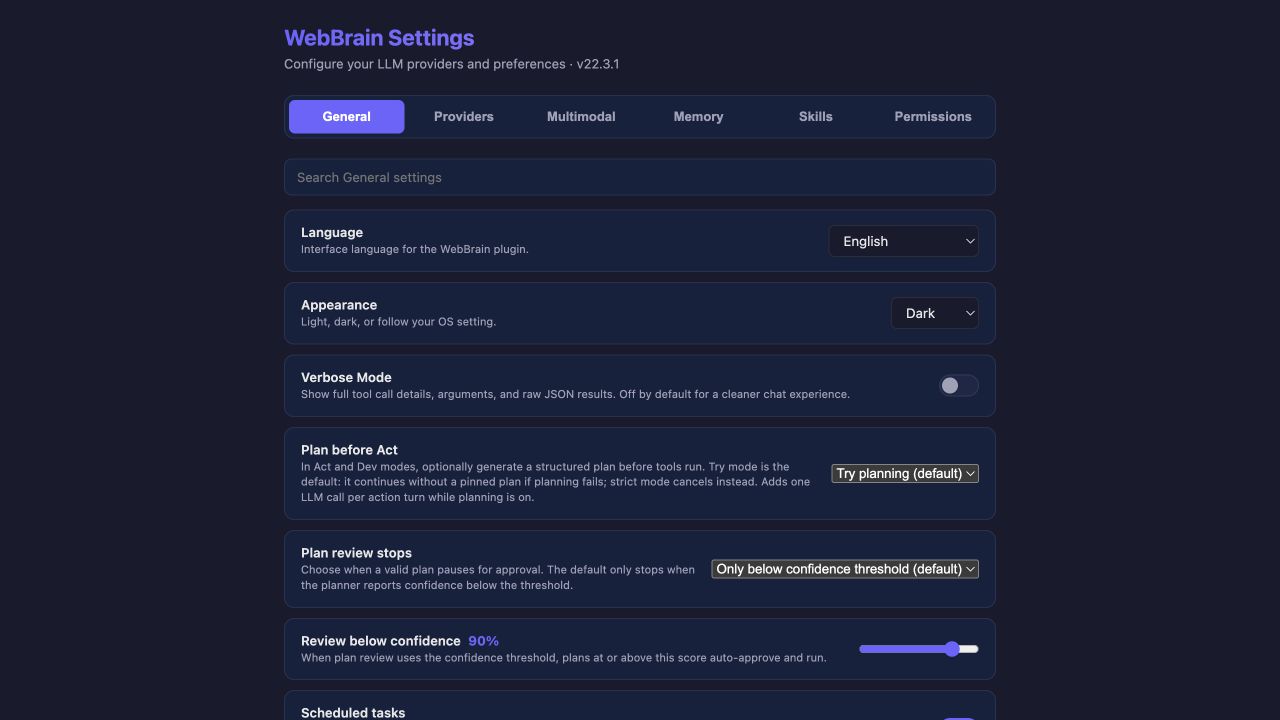
Planning controls
- Try planning is the best general choice. WebBrain attempts a structured plan before Act or Dev tools run; if planner formatting still fails after repair, that turn continues with the Ask prompt and read-only tools.
- Strict planning cancels the run when a valid plan cannot be produced. Use it where “no plan, no action” matters more than convenience.
- Off removes the extra full-plan call, while retaining the compact intent check and its safe read-only fallback. It can be faster and cheaper, but you lose the plan review checkpoint.
Steps and timeouts
The step limit counts tool-use steps for one message, not chat messages. Higher values allow longer workflows and more chances to recover, but they can also spend more tokens. The timeout only governs how long WebBrain waits for the model to start responding; it does not cut off a response that is already streaming.
Setting the step slider to ∞ removes a mechanical stop. It does not make a model less likely to loop. Keep a finite limit unless you are actively supervising a long job.
Advanced: open it for a reason
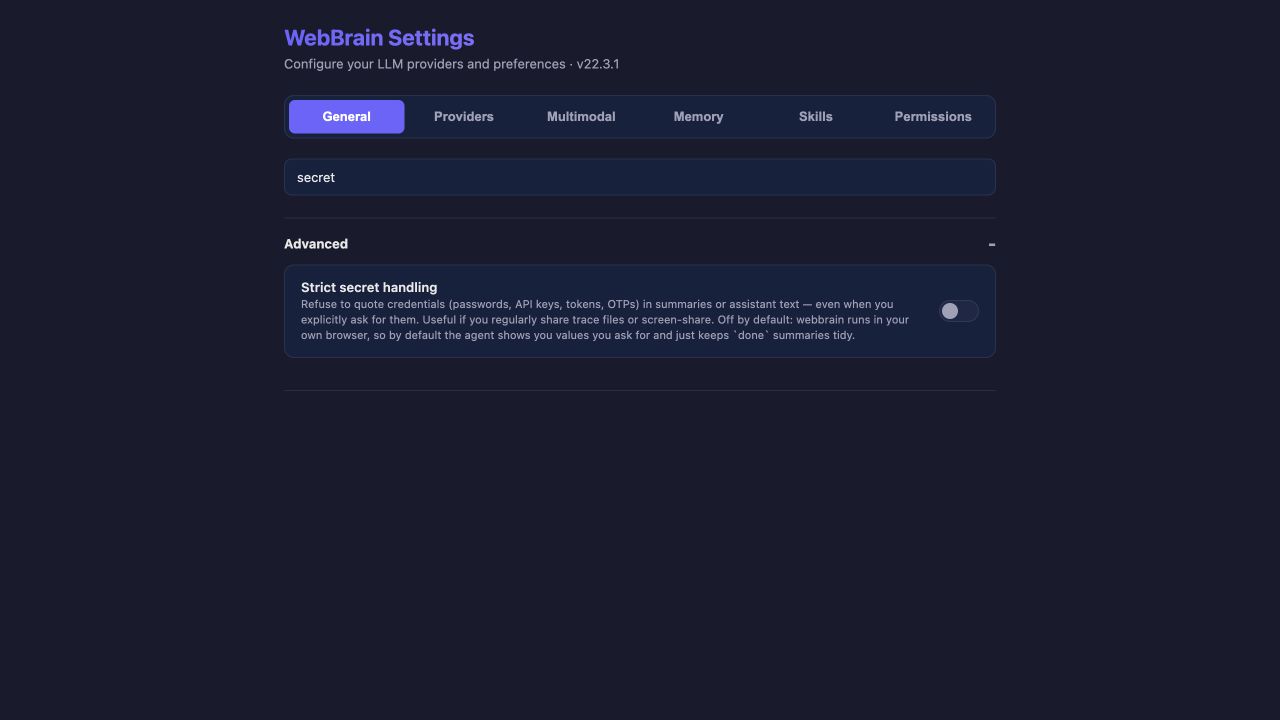
Use the General search box to jump directly to a control. Searching also opens the Advanced drawer when the matching setting lives there.
| Setting | Leave it… | Change it when… |
|---|---|---|
| Screenshot fallback | On if your model can see images | DOM reading misses canvas, charts, or visually rendered content. |
| Site adapters | On | You are debugging token use or want to disable site-specific guidance. |
| Voice input | On | You do not want the microphone affordance. |
| API mutation observer | Off | You are investigating repeated UI actions and API shortcut suggestions. |
| Auto-screenshot | On state change | You need lower image-token use, or need a picture after every action. |
| Record traces | Off | You are comparing models or diagnosing a run and accept local trace storage. |
| Cloud cost allowances | $10 defaults | You want a lower or higher mechanical spending stop for paid model calls. |
| Strict secret handling | Off for ordinary personal use | You screen-share or export traces and never want credentials quoted. |
| Allow local network | Off | The agent must reach localhost, an intranet, or a self-hosted private address. |
| CAPTCHA solver | Off | You configure an account with one or more supported CAPTCHA services. Provider coverage and setup. |
CAPTCHA solvers
General → Advanced has a dedicated block for CapSolver, 2Captcha, CapMonster Cloud, SolveCaptcha, Anti-Captcha, NopeCHA and NoneCap. Entering a key checks its enabled box; you can turn it off while keeping the key. Save persists that choice. Testing a balance does not enable solving.
Expand a provider’s Advanced section to adjust its weight. Defaults are 100 through 94 in the order above. Enable any number; compatible providers run from highest weight to lowest. Errors and timeouts can cause more than one service to charge.
hCaptcha uses NopeCHA or NoneCap. Other families have provider-specific coverage and input requirements. See the CAPTCHA guide for the full coverage table, fallback behavior, privacy and page-application limits.
Providers: choose the brain
Only one provider is active at a time. Filter the list by Local, Cloud, or Router; search by provider, model, or field; then open a card to edit it. The safe sequence is Save → Test Connection → Set Active.
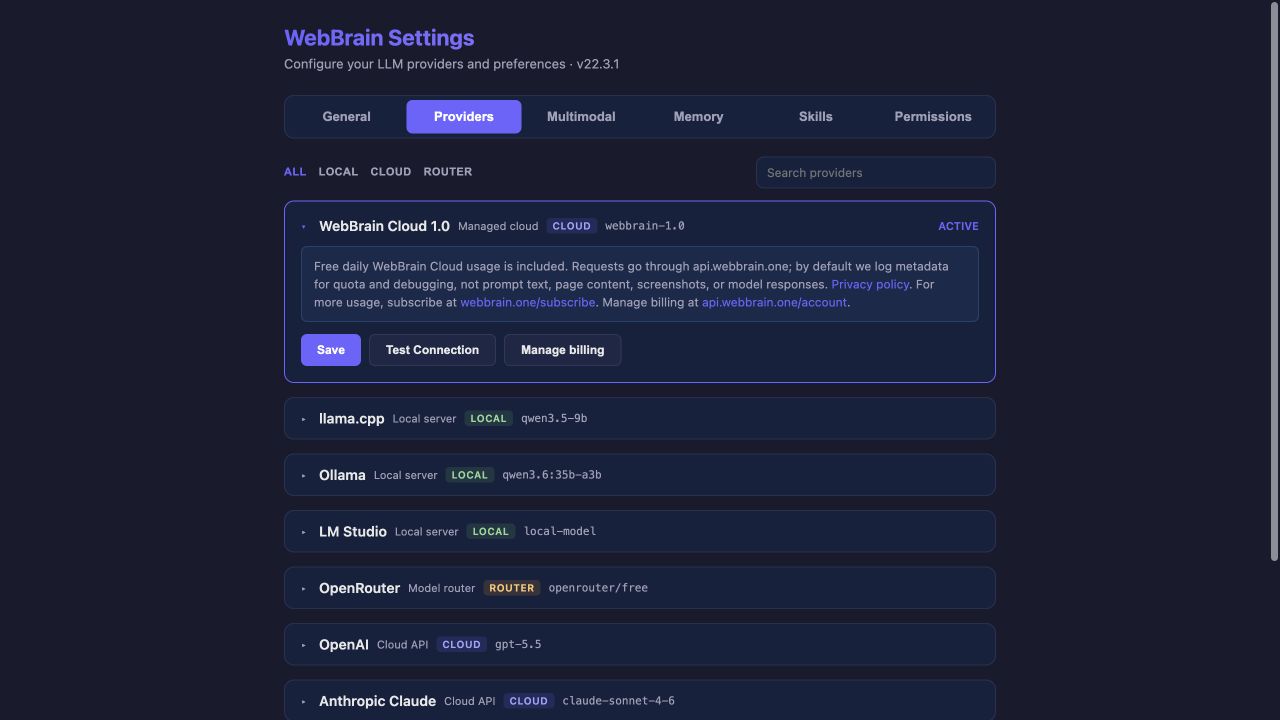
See Providers & models for local server URLs, context windows, prompt tiers, and troubleshooting.
Assistive Models: support the main agent
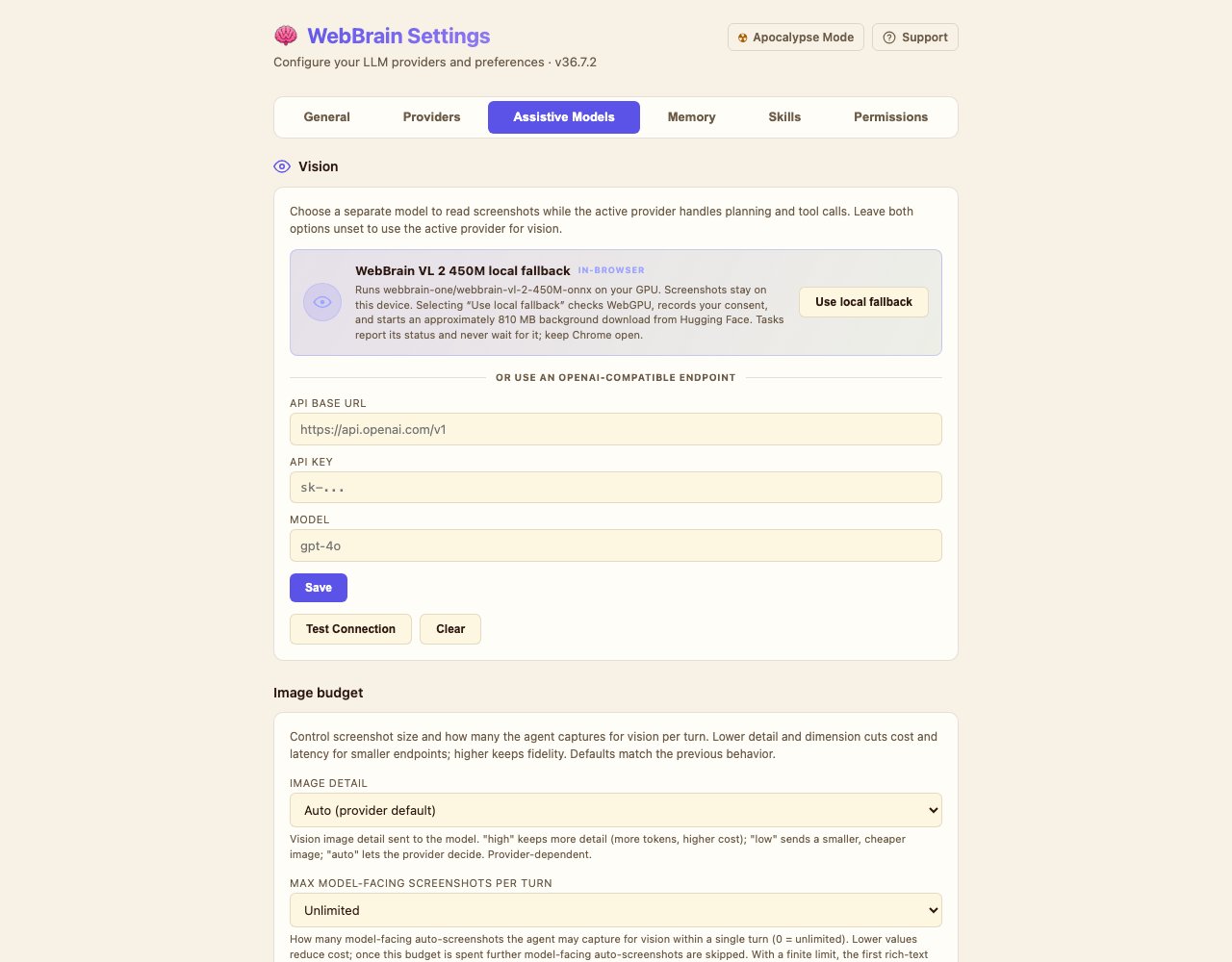
Choose the main conversation model in Providers. Open Settings → Assistive Models for the optional models below; configuring one does not change your active provider.
Vision
Use a dedicated OpenAI-compatible endpoint for screenshots while the active provider handles planning and tools. Chrome also offers an optional local vision fallback. Leave both unset to use the active provider for vision. Screenshot limits and redaction are grouped here too.
Speech to text
Configure a Whisper-compatible endpoint for recordings. Leave it blank and WebBrain tries configured providers in this order: OpenAI, Groq, LM Studio, then llama.cpp.
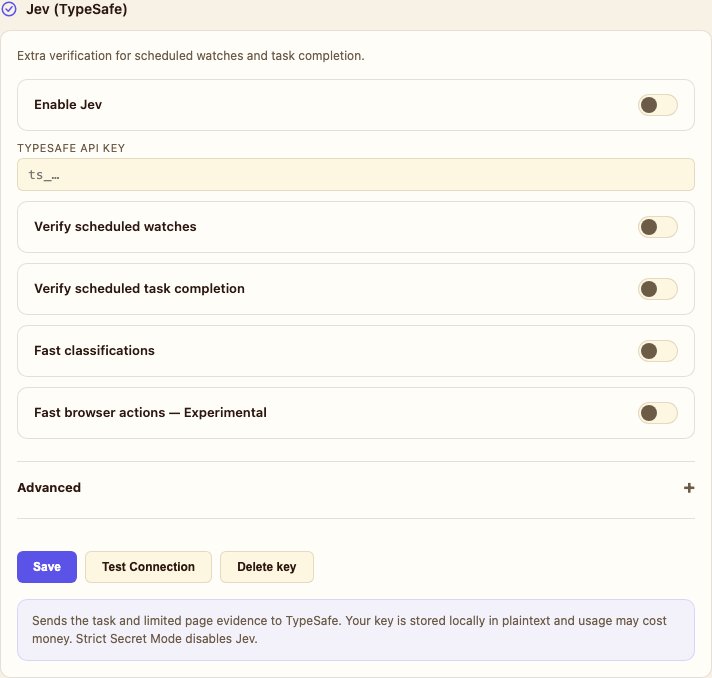
Jev (TypeSafe)
Open Settings → Assistive Models → Jev (TypeSafe) to add a TypeSafe API key and enable the features you want. Scheduled-watch and scheduled-completion verification use limited page observations to check a result. Probability thresholds live in the card’s Advanced section.
Fast classifications and Fast browser actions — Experimental are separate switches, off by default. They do not replace the main planner, permissions or completion checks. No general speed improvement has been established by live benchmarks.
Use Save to store changes, Test Connection for one request with fixed example data, or Delete key to remove the key and reset Jev options. Turning off Enable Jev preserves your individual preferences. Enabled features send limited task and page data to TypeSafe and may incur charges; Strict Secret Mode disables Jev.
Memory: decide what persists
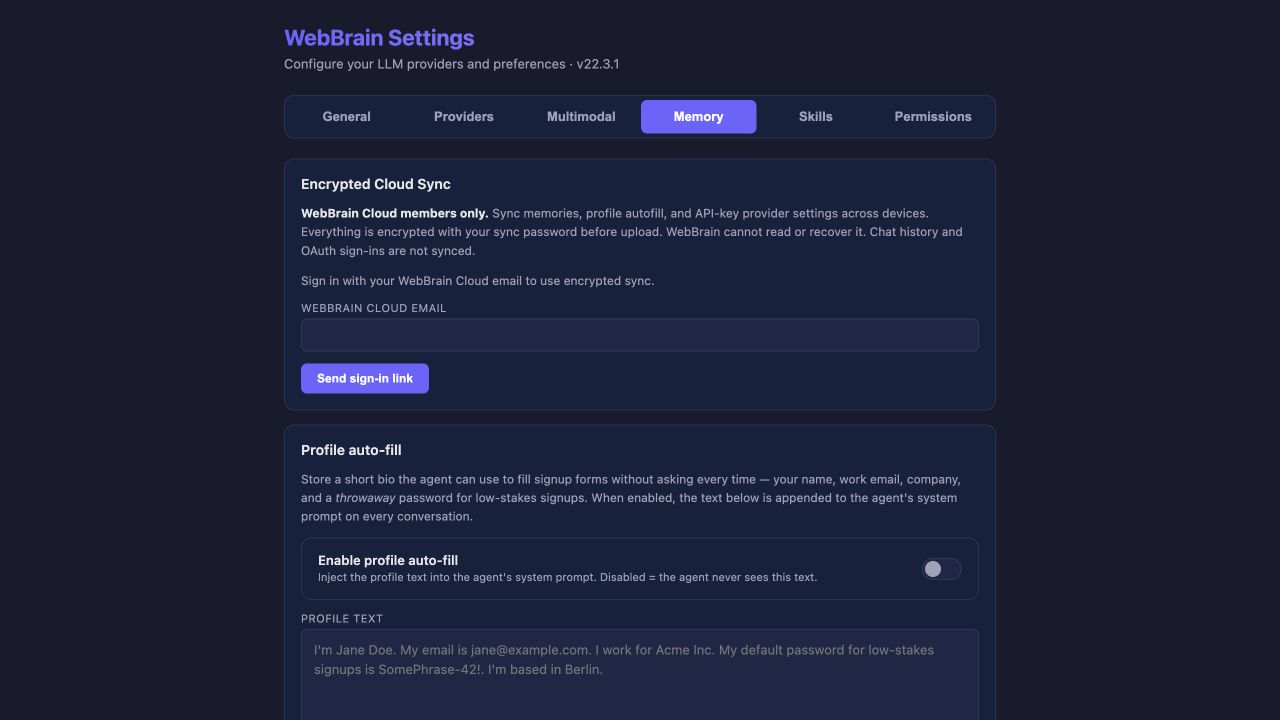
- Encrypted Cloud Sync is for WebBrain Compass members. Supported provider keys, profile text, and memories are encrypted with your sync password before upload. WebBrain cannot recover that password. Chat history and OAuth sign-ins are not synced.
- Profile auto-fill is a reusable block of personal details. It is stored in plaintext in this browser profile and sent to the active provider when enabled.
- User memory stores durable preferences. Explicit
/memory --addsaves immediately. Auto-learn and learning from completed forms are optional.
Do not store passwords, API keys, tokens, recovery codes, or other secrets in profile text or user memory.
Skills: extra instructions and tools
A skill can add instructions to the system prompt. A skill containing a webbrain-tools manifest can also expose HTTP or download-job tools. Imported skill text is copied into browser local storage and sent to your configured LLM as part of the system prompt.
Only import a skill you trust. Its declared HTTPS tools can send their declared inputs to the declared endpoint without a new prompt for every call. Download tools still use the normal Downloads permission gate before saving a file.
Permissions: where WebBrain may act
Keep Ask before consequential actions on. When you choose “Always allow” in the side panel, Settings records a specific capability for a specific site. A click grant is not automatically a typing, download, upload, JavaScript, or scheduling grant.
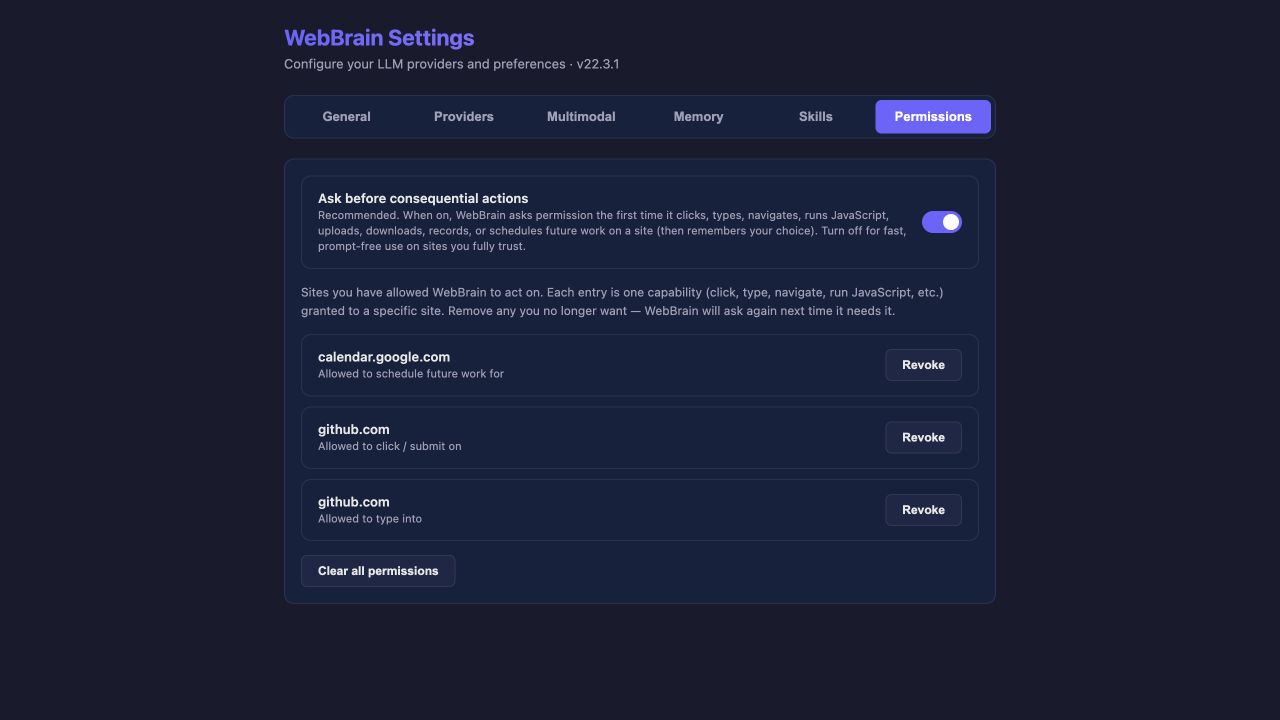
Turning it off allows prompt-free actions on every site until you turn it back on. This is much broader than granting one capability to one host.