
Choose the setup that matches your patience, privacy, and budget.
WebBrain includes 112 provider cards spanning its built-in cloud option, direct cloud APIs, model routers, and local OpenAI-compatible servers. You only need one active provider.
The quick choice
WebBrain Compass
Built in, active by default, and includes a free daily allowance. No model server or API key setup.
Local model
Use llama.cpp, Ollama, ODS, LM Studio, Jan, vLLM, SGLang, or LocalAI. Your model requests stay with the server you run.
Cloud API
Bring a key for OpenAI, Anthropic, Gemini, Mistral, DeepSeek, xAI, Groq, and other supported providers.
Router
Use one account to choose among many models. OpenRouter and Hugging Face are useful when you experiment often.
112 built-in provider cards
Settings includes 79 additional direct APIs and routers, including Azure AI Foundry, Vertex AI, Vertex Anthropic, Cerebras, Cohere, DeepInfra, Perplexity, Vercel AI Gateway, Venice, and many regional coding plans. Search by provider or model name instead of scrolling the whole list.
Most cards use an API key and OpenAI-compatible endpoint. Vertex cards use a Google Cloud project, location, and authorization key; the global location uses Google’s global endpoint, while Vertex Anthropic also supports the us and eu multi-region hosts. Cloudflare accepts an optional AI Gateway ID and automatically uses the default gateway for @cf/ models when the field is blank. Interactive Ask turns stream when the selected provider supports it and automatically retry once without streaming if the connection ends early. Provider-reported token usage is recorded directly; otherwise WebBrain records a conservative estimate so streaming cannot bypass cost limits.
GitHub itself is not going away, but GitHub Models retires July 30, 2026. GitHub Copilot requires a separate subscription/OAuth integration. GitLab Duo and SAP AI Core also require custom authentication and discovery not supported by the browser extension.
Configure a provider
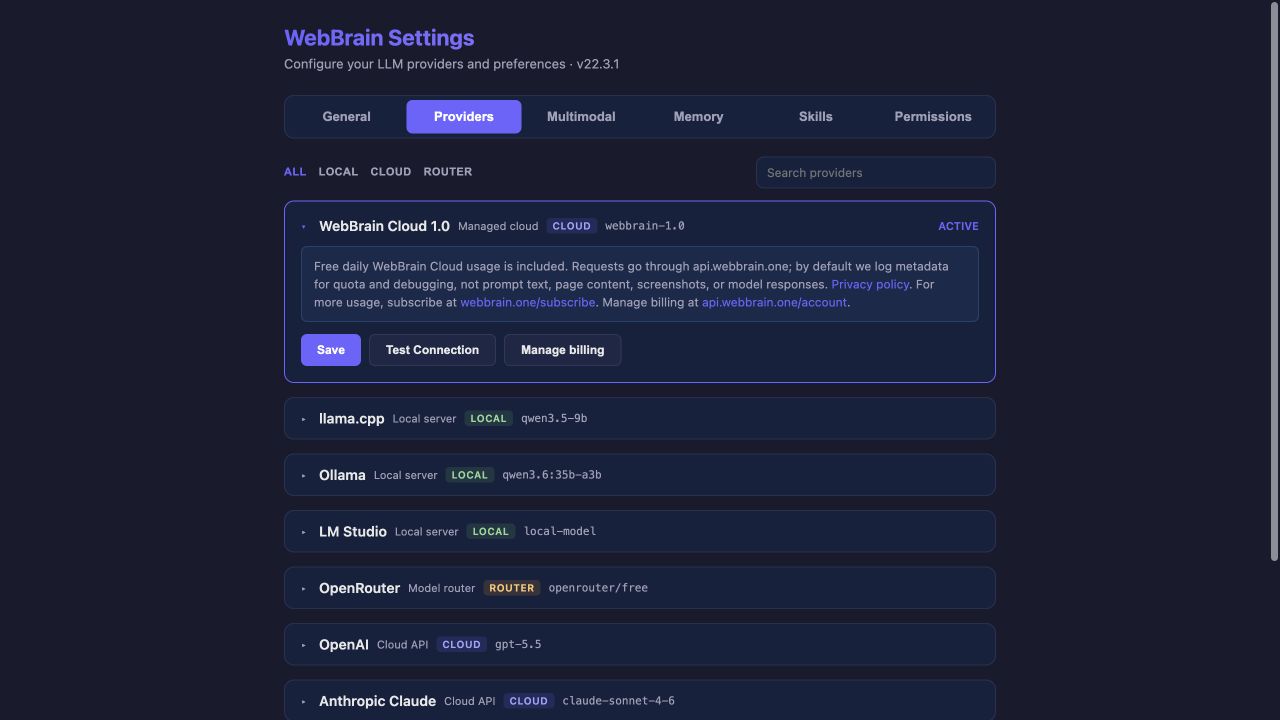
- Find the provider. Use Local, Cloud, Router, or the search field.
- Open its card. Non-active cards are collapsed to keep the list readable.
- Enter the values. Local servers usually need a URL and model name. Cloud providers also need an API key.
- Save. This stores the card’s current fields in the browser.
- Test Connection. Fix any reported URL, key, model, or server problem before continuing.
- Set Active. Only after the test succeeds. A saved provider is not necessarily the provider the side panel is using.
What the fields mean
| Field | Meaning | New-user advice |
|---|---|---|
| Server / Base URL | The OpenAI-compatible root endpoint or provider API root. | Use the exact value shown by your local app or provider. Do not paste a chat webpage URL. |
| API key | A credential sent to that provider. | Local servers normally do not need one unless you enabled authentication. |
| Model | The model identifier the server expects. | Spelling and prefixes matter. “Model not found” usually means this field does not match the provider catalog. |
| Context window | How much prompt, history, page content, and tool schema fits in one request. | 16k tokens is the usable target for reliable local runs. 8k can work with Compact; 4k is too small. |
| Supports vision | Whether the selected local or open catalog model accepts images. | Enable only when the exact served model can process image input. |
| Prompt tier | How large a prompt and normal browser-tool set WebBrain exposes. | Start with Mid for local models. Use Compact for small contexts and Full for capable models. |
| Input / output cost | Optional price estimates per million tokens. | Fill these when you want WebBrain’s cost allowances to estimate providers that do not report usage cost. |
Local models: the extra moving parts
| Server | Typical base URL | API key |
|---|---|---|
| llama.cpp | http://localhost:8080 | Usually none |
| Ollama | http://localhost:11434/v1 | None |
| ODS | http://localhost:11434/v1 | Optional; use the port in ODS .env |
| LM Studio | http://localhost:1234/v1 | None |
| Jan | http://localhost:1337/v1 | Optional |
| vLLM | http://localhost:8000/v1 | Optional |
| SGLang | http://localhost:30000/v1 | Optional |
| LocalAI | http://localhost:8080/v1 | Optional |
Load models asks supported local servers which models are currently available. For llama.cpp, ODS, Ollama, and LM Studio, Test Connection or Load models can also detect the live context window when the backend reports it.
If the server works in a terminal but not in WebBrain, check the server’s CORS/origin setting. Ollama commonly needs OLLAMA_ORIGINS="chrome-extension://*,moz-extension://*" before ollama serve.
Prompt tiers in plain language
Cloud providers are forced to Full. Local providers default to Mid unless you choose another tier. OpenRouter exposes the tier because its catalog includes models with very different capabilities. Dev mode is blocked for Compact-tier providers.
When Test Connection fails
- Connection refused: start the local server and confirm the port.
- CORS or origin error: allow the WebBrain extension origin in the local server.
- Unauthorized: paste a current key for the same provider as the base URL.
- Model not found: copy the exact model ID from the provider or use Load models.
- Requests time out: increase the General request timeout for large local models on CPU.
- Runs fail after a few turns: confirm the real context window; lower the prompt tier or load the model with a larger context.
Keep the working provider active while you configure a new one. Save and test the new card first; only then click Set Active.
Optional assistive models
The active provider handles the main conversation, planning and final replies. Use Settings → Assistive Models for a separate Vision model, Speech to text endpoint or Jev (TypeSafe). These settings are independent of provider filtering and selection.
Jev offers optional scheduled verification and separate default-off fast classifications and experimental browser actions. Existing permissions and completion checks still apply; live speed gains have not been established. See Assistive Models settings for setup and data-sharing details.